MeshCore for Meshtastic Users: A Beginner's Guide
The short version: MeshCore and Meshtastic run on similar hardware, but they are completely different systems that cannot talk to each other. Think of switching from Android to iPhone — same concept, different world. This guide walks you through everything you need to know to get started.
1. What's Actually Different?
If you've used Meshtastic, you already understand the basics — LoRa radios, mesh networking, messages hopping between nodes. MeshCore builds on the same idea but works differently under the hood, and that changes how you set things up.
How the Two Handle Messages Differently
In Meshtastic, when you send a message, every node that hears it shouts it back out again. This is called flooding — it's simple and effective, but it means every node on the network is busy retransmitting everything.
MeshCore uses a hybrid approach: - Broadcasts and adverts (like announcing your presence to the network) use flooding, just like Meshtastic - Direct messages between two people use path-based routing — the network finds a specific route and uses it, rather than blasting the message everywhere
This makes direct messaging more efficient, but it does mean the first message to someone new can take a moment while the network figures out the best path.
The Big "Gotcha" Table
| What you know from Meshtastic | What it's called in MeshCore | What's different |
|---|---|---|
ROUTER role |
Repeater (separate firmware) | It's a different firmware image, not just a settings change |
CLIENT role |
Client node | Works similarly; direct messages are routed, broadcasts still flood |
| MQTT gateway | Observer Node | Records to MQTT only, no sending, makes the Map possible |
Node ID (e.g. !ab12cd34) |
Node hash (e.g. 4EFE47) |
Generated differently, but same idea |
| Channels | Channels | Similar concept, different implementation |
| Meshtastic app | MeshCore app (Android & iOS) | Separate app — your Meshtastic app won't work |
| Web flasher | MeshCore web flasher | Different firmware, same easy browser-based process |
⚠️ Important: A MeshCore node and a Meshtastic node cannot hear each other, even on the same frequency. Your existing Meshtastic devices will not appear in MeshCore, and vice versa. They are completely separate networks.
2. The Three Types of MeshCore Node
Before you flash anything, you need to decide what you're building. MeshCore has two main node types, each with its own firmware image.
Companion Radio
This is your everyday personal device — the one you carry around or keep at your desk to send and receive messages. It usually connects to the MeshCore app on your phone via Bluetooth, but you can choose a USB companion build if you wish.
A companion does not repeat messages for other users. It's just for you.
Best for: Personal use. Carrying around. Chatting with others on the mesh.
Repeater
A repeater is an infrastructure node — you set it up somewhere high up (a rooftop, a hilltop, a mast) and leave it running. It extends the range of the network by forwarding messages between nodes that couldn't otherwise reach each other.
Repeaters often have no screen. They cannot over Bluetooth. You configure them via USB before deployment, and then they run on their own. This is the MeshCore equivalent of a Meshtastic ROUTER.
Best for: Extending coverage. Fixed hilltop or rooftop deployments. Always-on infrastructure.
3. Before You Flash: What You'll Need
A supported device
MeshCore runs on many of the same devices as Meshtastic — RAK WisBlock (RAK4631), XIAO nRF52840, Heltec devices, and others. Check the hardware list at meshcore.io to confirm yours is supported.
A Chromium-based browser
The MeshCore web flasher uses a browser feature called WebSerial to talk to your device over USB. This only works in Google Chrome, Microsoft Edge, or Brave. Firefox and Safari will not work for flashing.
A data-capable USB cable
Many cheap USB cables are charge-only and won't transfer data. If the flasher can't see your device, try a different cable first — this is the most common cause of flashing problems.
4. Flashing with the Web Flasher
Open flasher.meshcore.io in Chrome, Edge, or Brave. Everything is done through this page — no software to install.
Step 1: Plug In Your Device
Connect your device to your computer via USB.
Step 2: Choose Your Device
The flasher shows a searchable list of supported hardware. Find your device and click on it.
Step 3: Choose a Role
You'll see the available firmware types. Pick the one that matches your plan from Section 2 — Companion, Repeater, or Client.
Step 4: Erase (if needed) and Flash
There's an "Erase device" checkbox on the page. The rule is simple:
- Flashing for the first time, or coming from Meshtastic → tick the box. This wipes the old firmware cleanly.
- Updating a device that already runs MeshCore → leave it unticked. Erasing will reset your node's identity and all its settings.
Click Flash. Your browser will show a popup asking you to pick a serial port — your device will appear as something like "USB Serial Device". Select it and click Connect.
The flasher handles the rest. Don't unplug the device while it's working. It usually takes under a minute.
Step 5 (Repeaters only): Repeater Setup
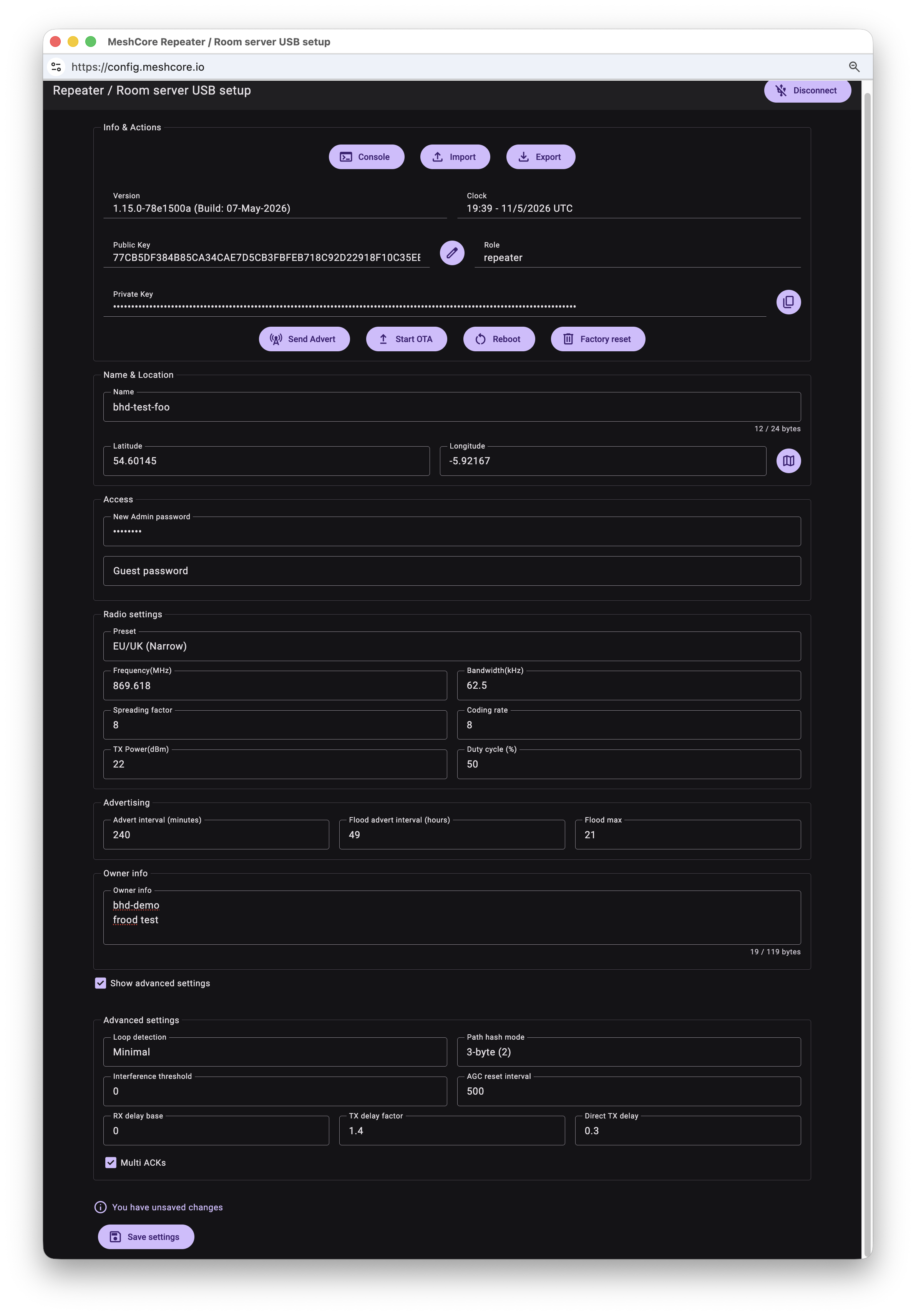
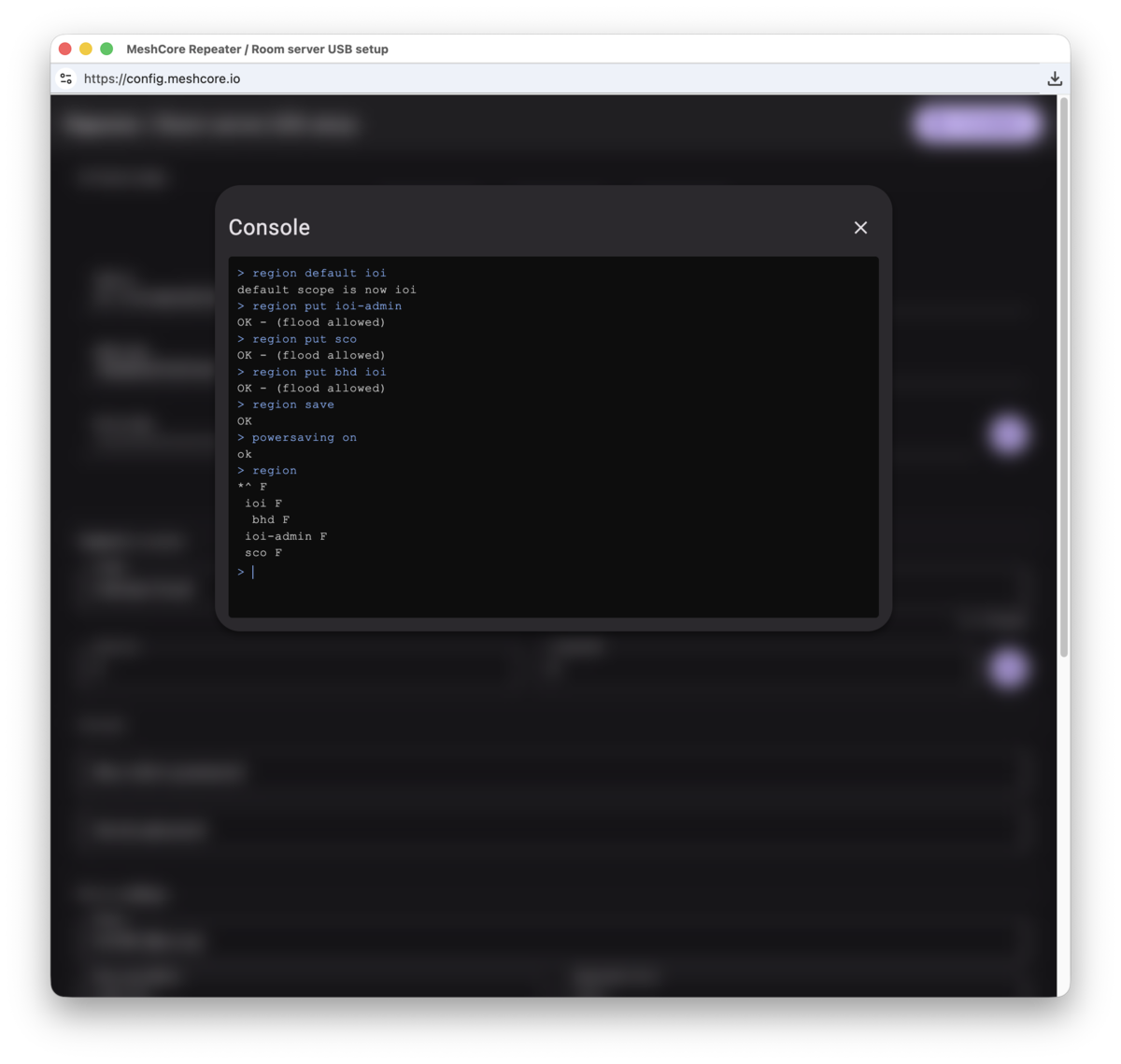
Once flashing finishes, you'll see a "Repeater Setup" button appear in the flasher — click it before unplugging. This opens a built-in configuration tool where you can configure your repeater. See the repeater setup guide for the required settings for operating on the Island of Ireland.
5. Setting Up a Client or Companion Radio
After flashing, getting a client or companion radio going is quick:
- Download the MeshCore app on your phone — available on Android and iOS from meshcore.io
- Open the app and look for Bluetooth pairing — your node should appear in the list
- Tap your node to connect
- In the app settings, select your regional frequency preset (e.g. UK/EU Narrow for the Island of Ireland)
- Enter your name so others on the mesh can see who you are
- Tap the send advert button (usually a signal or wave icon) to announce yourself to the network
Extra Credit: Watch This Video on tuning your Companion for the best experience.
That's it — you're on the mesh.
6. One Key Difference: Adverts
In Meshtastic, nodes regularly announce themselves in the background, so they just appear on your contact list over time. MeshCore works differently.
In MeshCore, a node doesn't show up on anyone's list until it sends an advert — a deliberate network announcement. When you first join, you might see an empty contact list even if there are other active users nearby. This is normal.
Send an advert first, then wait a minute. Other nodes will do the same, and you'll start seeing each other.
When you send a message, keep an eye out for "Heard X repeat(s)" in the response — this means repeaters on the mesh picked up your message and forwarded it. If you only see "Sent" with no repeats, try a higher location or check your frequency preset.
7. Repeater Deployment Checklist
- [ ] Choose a good site — height and line of sight are more important than transmit power
- [ ] Flash
Repeaterfirmware at flasher.meshcore.io - [ ] Use Repeater Setup in the flasher to set frequency preset, name, location, and passwords, following the repeaters setup guide
- [ ] Run a Trace Path from a client node to verify signal quality (see Section 8)
- [ ] Mount, weatherproof, and power the enclosure
- [ ] No further management needed unless you want to update settings
8. Checking Signal Quality with Trace Path
Once your repeater is up, you'll want to confirm that your client can actually reach it with a healthy signal — not just technically connected, but reliably so. MeshCore has a built-in tool for this called Trace Path.
What It Does
Trace Path works like the traceroute command in networking, but for your mesh. It sends a test packet along a path you specify and reports back the SNR (signal-to-noise ratio) and round-trip time at each hop. This tells you not just whether a link works, but how well it works.
If you select only a single repeater, it becomes a simple ping — a quick "are you there, and how strong is the signal?" test.
How to Run One
- In the MeshCore app, go to Tools
- Choose Trace Path — there are two options:
- Manual — you pick the nodes in order by selecting them from a list
- Using Map — you tap nodes on the map in the order you want to trace
- Select your target repeater (or a chain of repeaters if testing a multi-hop path)
- Make sure your path has a return route — the trace needs to come back to you, so include the intermediate hops in both directions, or ensure the network already has a path back
- Tap Start and wait a few seconds
Reading the Results
The results show each hop in your path with:
- SNR — signal-to-noise ratio in dB. This is the most useful number. Positive values mean a solid link; slightly negative values (down to about –10 dB) are usually still workable with LoRa. Very negative values mean the link is marginal
- RSSI — raw signal strength in dBm. Better than about –120 dBm is generally acceptable
- Round-trip time — how long the whole journey took. Long delays can indicate a weak or congested link
| SNR | What it means |
|---|---|
| Above +5 dB | Strong, reliable link |
| 0 to +5 dB | Good link, comfortable margin |
| –5 to 0 dB | Workable, but on the lean side |
| Below –10 dB | Marginal — consider antenna, height, or placement changes |
Tips for Getting Useful Results
- Run traces at different times of day — RF conditions change with weather, temperature, and nearby interference
- If a trace fails completely (no response), check that your frequency preset matches the repeater's, and that you're within plausible range
- If SNR varies wildly between runs, you may have an intermittent interference source nearby — this is especially common at sites with co-located cellular equipment
- Run traces before you permanently mount a repeater to confirm the link is solid, not after
9. Common Problems and Fixes
"Nothing appeared after I connected"
MeshCore only shows other nodes after they've sent an advert — not automatically like Meshtastic. Send an advert from the app yourself, wait a minute, then check again.
"My message says 'Sent' but I got no response"
If you see "Sent" but no "Heard X repeat(s)", nothing on the mesh heard your message. Try sending from a higher location, or double-check that your frequency preset matches what your local repeaters are using.
"The flasher won't connect to my device"
- Confirm you're using Chrome, Edge, or Brave — not Firefox or Safari
- Try a different USB cable (charge-only cables are a very common culprit)
- Try a different USB port
- Some devices need a button press to enter flashing mode — check the specific instructions for your hardware
"My repeater doesn't show up anywhere"
- Confirm the frequency preset matches other nodes in your area
- Make sure the repeater is within range of at least one other active node
- Repeaters need to send a beacon before they appear on maps — give it a few minutes after powering up
"I thought a companion radio needed a PC — mine is running standalone"
That's correct — it doesn't need one. A companion radio on a Heltec T114 or T096 works as a fully self-contained node. Connect to it via the MeshCore app over Bluetooth, same as any client.
10. What MeshCore Doesn't Do (Yet)
It's worth setting realistic expectations if you're used to Meshtastic:
- The app is still maturing — the Meshtastic app has years of polish behind it; MeshCore's is newer and improving steadily but not quite there yet
- Smaller community in most areas — fewer nodes on the ground, depending on where you are
- No cross-talk with Meshtastic — there is no bridge between the two networks; they remain separate
None of these are dealbreakers, but if you're in a quiet area for MeshCore, you may need to get others interested before the network is useful.
11. Resources
| Resource | Link |
|---|---|
| MeshCore home | https://meshcore.io |
| Web flasher | https://flasher.meshcore.io |
| Official documentation | https://docs.meshcore.io |
| MeshCore app | via meshcore.io or your app store |
| LoRa Project (Ireland) — regions, repeater guides, build guides | https://loraproject.org |
| Region scopes for Ireland | https://loraproject.org/regions/ |
| MeshMapper (Ireland live map) | https://ioi.meshmapper.net |
| MeshCore Discord | Search "MeshCore" on Discord |
This guide is written for MeshCore firmware v1.15. MeshCore is actively developed — check the Discord or release notes if anything has changed.